Python Setup for Algo Trading on Windows: Build a Reproducible Research Environment
A practical setup for Python, pandas, JupyterLab and Plotly before you download NSE data or connect a broker API.
If you want to research Indian markets with code, start with a reproducible workspace rather than a strategy script. Install one official Python runtime, create a project-local virtual environment, install the research tools through that environment, register the matching Jupyter kernel and run a synthetic OHLCV check. This sequence proves which interpreter and packages your notebook uses before you touch real NSE data; it removes setup ambiguity, not research quality.
This Windows route is documented from current first-party sources. The local smoke check was run on Linux with pandas 2.2.3; an end-to-end Windows install and the Jupyter/Plotly checks still need a Windows validation run. Treat the version snapshot as dated guidance, not a permanent compatibility guarantee.
What “ready for trading research” means
“Ready” does not mean that a strategy is profitable, that your data are clean or that a broker will accept an order. It means you can answer four basic questions:
- Which Python executable is running?
- Which environment received the packages?
- Which interpreter will the notebook kernel use?
- Can a small, synthetic candle table be checked and rendered without a network connection?
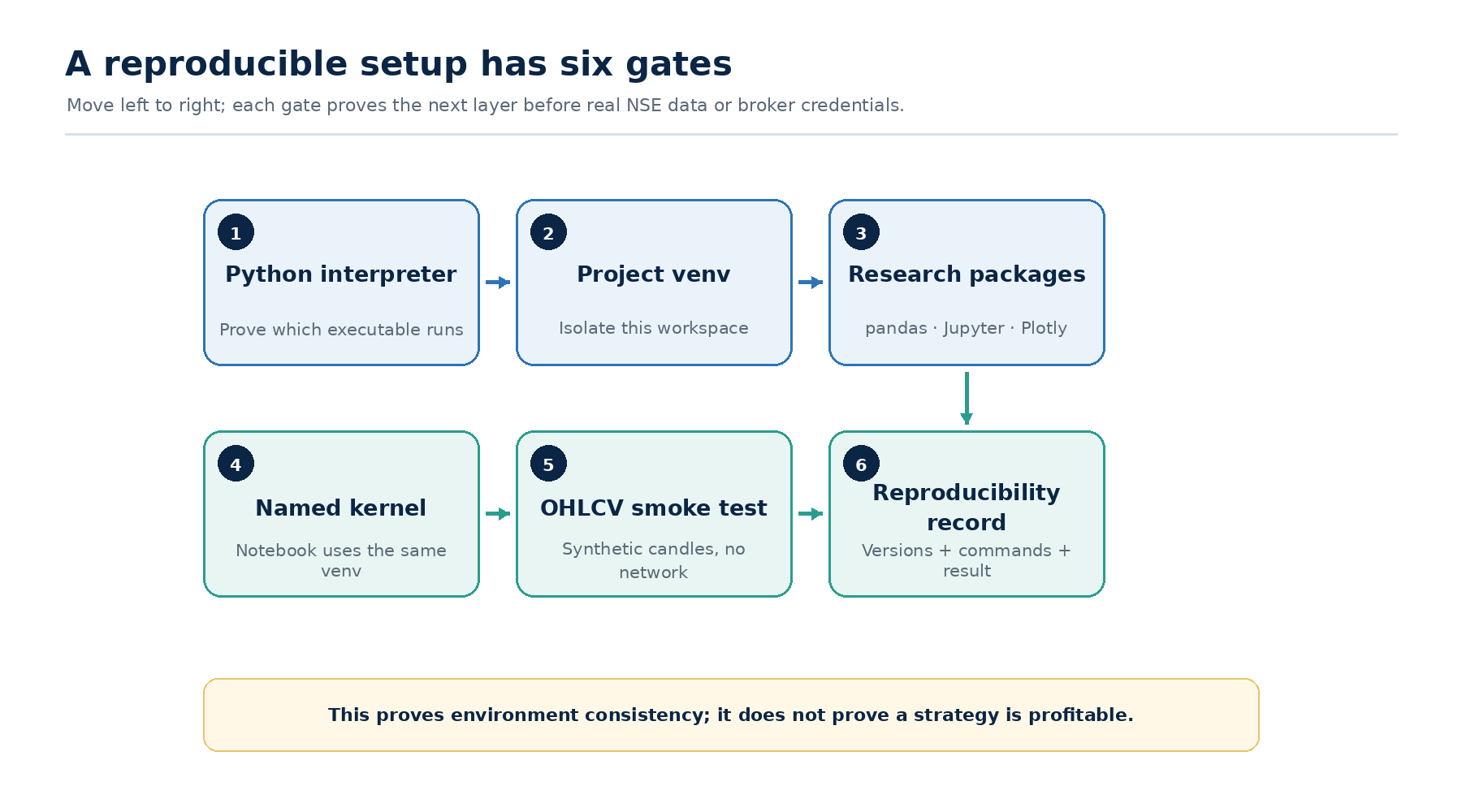
Source: DailyBulls setup workflow; package versions and Windows-validation limits remain in the article.
The setup in this article is the gate before real data. It does not choose an NSE or BankNifty data vendor, build a production data pipeline or test a backtest. Those decisions belong to the next pages in this cluster.
If you need the statistical concepts behind returns and expectancy first, use the maths needed for algorithmic trading as the upstream context. If you already understand that material, begin here.
Choose one narrow Windows route
The canonical route for this guide is:
Official CPython → project-local .venv → python -m pip → JupyterLab → pandas + Plotly + ipykernel → synthetic smoke test
Python’s Windows documentation explains the available installer and launcher commands, including how to inspect multiple runtimes and diagnose PATH conflicts (1). A virtual environment keeps this project’s packages separate from other Python work; Python and the Python Packaging User Guide both treat .venv or venv as conventional, disposable directories that should not be committed to source control (2) (3).
Conda, Poetry, uv, VS Code and broker-specific packages can all be useful in other projects. They are not part of the first route here. Adding several package managers to a beginner’s setup makes it harder to tell whether a failure is in Windows, the interpreter, the environment or the package manager.
The dated candidate stack
The following snapshot was retrieved on 6 August 2026 from the official Python and package release pages (10)–(14). It is a starting point for the Windows test transcript, not a promise that every package will support every Python build:
| Component | Candidate snapshot | What you must verify |
| CPython | 3.14.7 | The installer, launcher and architecture available on your machine |
| JupyterLab | 4.6.2 stable | That it installs in the chosen environment and starts with jupyter lab |
| pandas | 3.0.5 | That the chosen Python version has a compatible Windows wheel |
| Plotly | 6.9.0 | That the notebook can render a figure and write an HTML file |
| ipykernel | 7.3.0 | That the named kernel points to .venv |
Release metadata changes. The useful record is the output you capture from your own environment, especially python -m pip –version, the imported package versions and the generated requirements.txt. Do not pin the numbers above in a published command block until a clean Windows run has passed.
Install Python and prove which interpreter you have
Open a new PowerShell window and check the launcher before creating the project:
POWERSHELL
py --version
py -0p
where.exe python
py –version should identify an installed Python launcher. py -0p lists runtimes that the launcher can see. where.exe python shows every python.exe found on PATH. If these commands disagree, pause and resolve the interpreter choice before installing anything. A package installed into the wrong interpreter is one of the most common setup failures.
If py or python is not recognised, check the official installer and launcher state rather than downloading an executable from an unverified source. On a managed Windows machine, an administrator may control PATH, application aliases or available installers. The official Python troubleshooting page documents the relevant checks (1).
Create a project folder and a virtual environment:
POWERSHELL
mkdir dailybulls-algo
Set-Location dailybulls-algo

py -3 -m venv .venv
The .venv directory is deliberately local to this project. It can be deleted and recreated; it should not be copied between machines or committed to a repository. The Python venv documentation describes an environment as isolated and disposable rather than a portable application bundle (2).
Activate it for the current PowerShell session:
POWERSHELL
.\.venv\Scripts\Activate.ps1Now prove that the active terminal is using the new environment:
POWERSHELL
python -c "import sys; print(sys.executable)"
where.exe python
python -m pip --version
The first path should end in .venv\Scripts\python.exe. The pip path should point into the same .venv, not a global Python installation. The packaging guide recommends checking the active interpreter path and invoking pip through that interpreter (3).
If PowerShell blocks activation
Activation is a convenience, not a requirement. You can run the environment’s interpreter directly:
POWERSHELL
.\.venv\Scripts\python.exe -m pip --version
.\.venv\Scripts\python.exe -m pip install jupyterlab pandas plotly ipykernel
If you want to understand why activation was blocked, inspect the policy scopes:
POWERSHELL
Get-ExecutionPolicy -ListMicrosoft documents that PowerShell policies have scopes and precedence. A Process-scope change lasts only for the current session; CurrentUser persists for that user; and Group Policy can override both (4) (5). Do not make LocalMachine unrestricted simply to get a tutorial command working. On a managed computer, ask the administrator or keep using the direct .venv\Scripts\python.exe path.
Install the tools and record the result
Upgrade pip inside the environment, then install the four components needed for this article:
POWERSHELL
python -m pip install --upgrade pip
python -m pip install jupyterlab pandas plotly ipykernel
The python -m pip form is intentional. It asks the interpreter you just checked to run pip, instead of trusting whichever pip.exe happens to appear first on PATH. Python’s installation guide and the Packaging User Guide document this pattern for Windows (3).
Capture the resolved environment:
POWERSHELL
python -m pip freeze > requirements.txt
python -m pip show pandas plotly jupyterlab ipykernel
requirements.txt is a dated rebuild record. A freeze includes transitive dependencies, so it can be more detailed than the four packages you named. It improves repeatability but does not guarantee that the same files will remain available forever; pip’s repeatable-install guidance distinguishes pinning from a complete supply-chain lock (6).
JupyterLab is the primary interface in this guide. The official Jupyter install page documents the corresponding installation and jupyter lab launch command (7). Classic Notebook is a valid alternative, but mixing two launch routes in the first setup usually creates unnecessary confusion.
Register the environment as a named kernel
Install and register ipykernel from the active environment:
POWERSHELL
python -m ipykernel install --user --name dailybulls-algo --display-name "Python (dailybulls-algo)"
jupyter kernelspec list
The IPython documentation explains why this matters: a Jupyter frontend can run a different kernel from the Python process you used in the terminal, especially when several environments exist. A unique internal name and a clear display name make the selection explicit (8).
Launch JupyterLab:
POWERSHELL
jupyter labIn the browser, select Python (dailybulls-algo) as the notebook kernel. The first cell in the verification section below prints sys.executable; it should still point into .venv.
Keep the project layout boring
A predictable folder structure is a small form of risk management. It stops a downloaded file, a derived table and a notebook output from silently becoming the same “latest.csv”.
TEXT
dailybulls-algo/
├─ .venv/                 # disposable environment; never commit
├─ notebooks/             # exploratory notebooks
├─ src/                   # reusable Python modules
├─ data/
│  ├─ raw/                # source files; retain provenance and licence notes
│  └─ processed/          # derived tables; never overwrite raw files
├─ tests/                 # smoke tests and later data checks
├─ artifacts/             # generated HTML, figures and logs
├─ requirements.txt       # dated resolved dependency snapshot
├─ README.md              # setup and run notes
└─ .gitignore             # excludes .venv, secrets and machine-specific files
At this stage, data/raw and data/processed are empty placeholders. Topic 5 will compare NSE and BankNifty data sources; Topic 6 will define a production ingestion and provenance path; Topic 8 will test whether the resulting dataset is trustworthy. Do not download live data merely to prove that Python imports.
Setup sequence at a glance
| Gate | Pass condition | Stop if |
| Interpreter | py, where.exe python and sys.executable identify the intended runtime | Windows launches a different Python or none at all |
| Environment | .venv exists inside the project and is excluded from version control | The terminal uses a global environment |
| Packages | python -m pip –version and pip show point into .venv | Install and import paths disagree |
| Kernel | The notebook uses Python (dailybulls-algo) | Terminal imports work but notebook imports fail |
| Smoke test | OHLCV assertions pass and the HTML artefact is non-empty | Fix the failed layer before downloading data |
This table is the accessible fallback for the setup sequence; no decorative graphic is needed to follow the steps.
Run a synthetic OHLCV smoke test
The smoke test uses invented values. It checks that the environment can:
- import pandas and Plotly;
- create timezone-aware five-minute timestamps;
- hold the standard open, high, low, close and volume columns;
- detect basic candle inconsistencies;
- write an interactive HTML artefact without requesting market data.
Create a notebook cell under the registered kernel and run:
PYTHON
from pathlib import Path
import json
import sys

import pandas as pd
import plotly.graph_objects as go

idx = pd.date_range(
    "2026-01-02 09:15",
    periods=4,
    freq="5min",
    tz="Asia/Kolkata",
)

df = pd.DataFrame(
    {
        "open": [100.0, 100.5, 100.2, 101.0],
        "high": [101.0, 101.2, 101.4, 101.5],
        "low": [99.8, 100.0, 100.0, 100.7],
        "close": [100.5, 100.2, 101.0, 101.3],
        "volume": [1000, 1200, 1100, 1400],
    },
    index=idx,
)

ohlcv_ok = (
    df.index.is_monotonic_increasing
    and df.index.is_unique
    and {"open", "high", "low", "close", "volume"}.issubset(df.columns)
    and (df["high"] >= df[["open", "close"]].max(axis=1)).all()
    and (df["low"] <= df[["open", "close"]].min(axis=1)).all()
    and (df["volume"] >= 0).all()
)

figure = go.Figure(
    go.Candlestick(
        x=df.index,
        open=df["open"],
        high=df["high"],
        low=df["low"],
        close=df["close"],
    )
)

output = Path("artifacts") / "synthetic_ohlcv.html"
output.parent.mkdir(exist_ok=True)
figure.write_html(output, include_plotlyjs="cdn")

result = {
    "python": sys.version.split()[0],
    "executable": sys.executable,
    "pandas": pd.__version__,
    "plotly": __import__("plotly").__version__,
    "rows": len(df),
    "ohlcv_ok": bool(ohlcv_ok),
    "html_exists": output.exists(),
    "html_bytes": output.stat().st_size,
}
print(json.dumps(result, indent=2))
assert result["ohlcv_ok"]
assert result["html_exists"] and result["html_bytes"] > 0
The expected shape of the result is:
TEXT
{
  "python": "...",
  "executable": "...\\.venv\\Scripts\\python.exe",
  "pandas": "...",
  "plotly": "...",
  "rows": 4,
  "ohlcv_ok": true,
  "html_exists": true,
  "html_bytes": a positive number
}
The HTML file is the core Plotly check because it preserves interactivity without requiring the static-image toolchain. Plotly’s documentation describes static export as a separate capability that uses Kaleido and, for current releases, a compatible Chrome or Chromium executable (9). Do not add kaleido to the core install merely to obtain a screenshot. If a later article design needs a PNG or PDF, test that dependency separately and date the result.
The Linux-only pandas check used the same four synthetic rows and passed the OHLCV validation logic. That is useful evidence that the check itself is executable, but it is not a Windows test, not a Plotly test and not evidence that real NSE data are valid.
Troubleshoot the failed layer, not everything at once
| Symptom | Likely layer | First safe check |
| py or python is not recognised | Installer, launcher or PATH | Run py –version, py -0p and where.exe python; inspect the official install state |
| python opens the Store or points to an unexpected version | App alias or PATH order | Compare where.exe python with python -c “import sys; print(sys.executable)” |
| Activate.ps1 is blocked | PowerShell execution policy | Run Get-ExecutionPolicy -List; use the direct .venv\Scripts\python.exe path while policy is reviewed |
| pip installs but imports fail | Wrong interpreter | Run python -m pip –version and compare its path with sys.executable |
| Installation tries a source build or cannot find a wheel | Python version, architecture or package support | Record the exact Python build and check the package’s supported classifiers; do not disable safeguards blindly |
| jupyter is not recognised | Inactive environment or script path | Activate .venv, confirm python -m pip show jupyterlab, then try python -m jupyter lab |
| Terminal imports work but the notebook says ModuleNotFoundError | Wrong Jupyter kernel | Register ipykernel from .venv, select Python (dailybulls-algo) and print sys.executable inside the notebook |
| Plotly figure is blank | Notebook/browser renderer | Write figure.write_html(…), check that the file exists and inspect the browser separately |
| write_image reports a Kaleido or Chrome error | Optional static-export layer | Keep the HTML check; test Kaleido and a compatible Chrome/Chromium installation only if static output is required |
| Files appear in an unexpected folder | Working-directory/path layer | Print Path.cwd() and use project-relative paths |
Reinstalling everything is rarely the best first move. An interpreter path, a kernel path and a package path are three separate facts; print each one before changing the environment.
Keep credentials and live data out of this first pass
The smoke test uses no API key, broker login, cookies or real market data. Keep it that way. Never paste a broker secret into a public notebook or commit a .env file containing credentials. Broker authentication, WebSockets, order states and execution safeguards are later topics in the cluster.
A successful setup does not grant permission to download or redistribute NSE data. Topic 5 will cover source choice, cost, depth and licensing; Topic 6 will cover ingestion and provenance. Until then, use synthetic values or data you are explicitly allowed to use.
Your “ready” checklist
Stop and fix the first failed item:
- [ ] py –version and where.exe python identify the intended runtime.
- [ ] .venv was created inside the project and is excluded from version control.
- [ ] sys.executable and python -m pip –version point to the same .venv.
- [ ] requirements.txt records the resolved packages and date.
- [ ] JupyterLab starts and the named kernel is Python (dailybulls-algo).
- [ ] The notebook prints a .venv\Scripts\python.exe path.
- [ ] The synthetic OHLCV assertions pass.
- [ ] artifacts\synthetic_ohlcv.html exists and is non-empty.
- [ ] No credentials or unlicensed market data were used.
Only after this checklist passes should you move from tooling to data.
What this setup does not prove
It does not prove that:
- pandas, JupyterLab and Plotly will remain compatible with every future Python release;
- your market data have correct timestamps, adjustments, corporate actions or point-in-time membership;
- a backtest has avoided look-ahead or survivorship bias;
- a broker API will fill an order as your notebook expects;
- a strategy has an edge or will make money;
- a static Plotly export works without its optional dependencies;
- a virtual environment removes every operating-system or permissions problem.
The version snapshot and commands in this article should be re-tested after a major Python or package release. Display the date of the verified Windows run when that test exists; do not silently convert a documented route into a claim of universal support.
Continue the learning path
Once the environment passes, learn how to transform candle tables without losing timestamps or introducing accidental leakage in the pandas Crash Course for Candles. If you are ready to choose an NSE or BankNifty input, continue to Where to Get NSE/BankNifty Data at Every Price Tier. The production ingestion and data-quality boundaries are intentionally left to Topics 6 and 8.
Sources
The body uses numbered citations. Each external source appears once here; release metadata should be refreshed when this article is updated.
Share this insight
Spread the Alpha
Related Articles
More ideas that align with your trading playbook.
Data QA before Algo Trading backtesting: why your dataset can mislead you
A backtest can be wrong even when the file opens, the candles look plausible and the code runs without an exception. Current-only…
pandas for Algo Trading Data: A Practical Crash Course for Candle Data
Pandas becomes useful for trading research when you make time, price fields and table grain explicit. Sort each instrument’s timestamps, define the…
Building a Clean NSE Data Pipeline for Algo Trading: From Bhavcopy to Research-Ready Candles
Building a clean NSE data pipeline means more than download a file. It preserves the original input, records where each row came…
 DailyBulls (Arthashilpi Ventures) is a D-U-N-S verified company.